


Build an AI Slack Bot with Claude, GPT, Grok, & Gemini
What if you could build a Slack bot that talks to Claude, GPT, Grok, and Gemini — and switch between them with a single chat command? And what if the whole thing fit in a single file?
That's what we're building today. No framework. No boilerplate. Just Hot Dev.
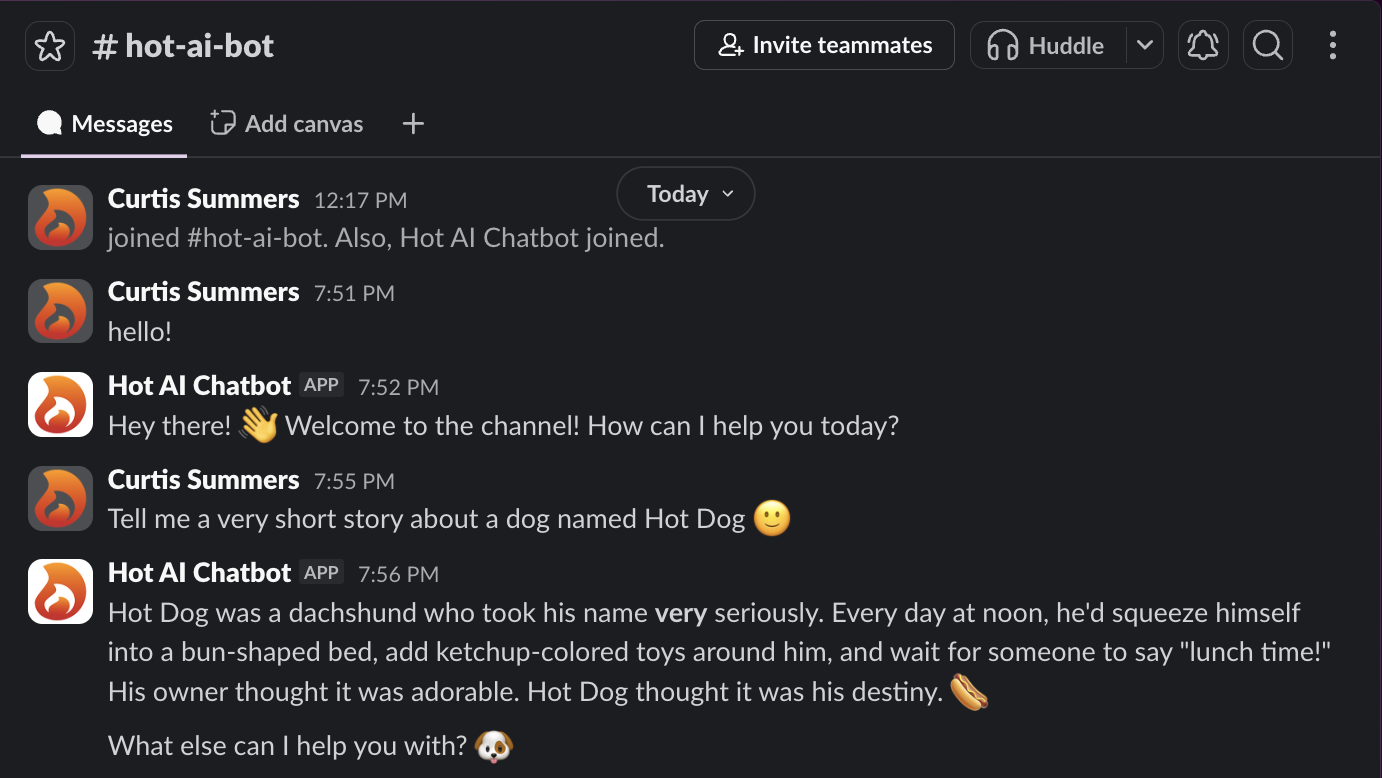
Full source code: github.com/hot-dev/hot-demos/tree/main/slack-bot
What You'll Build
An AI-powered Slack bot that:
- Talks to four AI providers — Claude, GPT, Grok, and Gemini
- Switches models live — Type
!ai gptin the channel and the next reply comes from GPT - Reads conversation context — The bot knows what was said recently
- Deploys with one command —
hot deployto go live on Hot Dev Cloud
We'll get this running locally first, then deploy it to production with real-time webhooks.
Prerequisites
Before we start, you'll need:
- Hot Dev CLI — Download from hot.dev/download
- VS Code extension (optional) — Search "Hot" by
hot-devin the Extensions panel for syntax highlighting, autocomplete, and error checking - A Slack workspace where you can create apps
- At least one AI API key — Anthropic (Claude) is the default, but OpenAI, xAI, or Google Gemini work too
Step 1: Create a Slack App
First, we need a Slack app with the right permissions.
- Go to api.slack.com/apps
- Click Create New App → From scratch
- Give it a name (e.g., "Hot AI Bot") and select your workspace
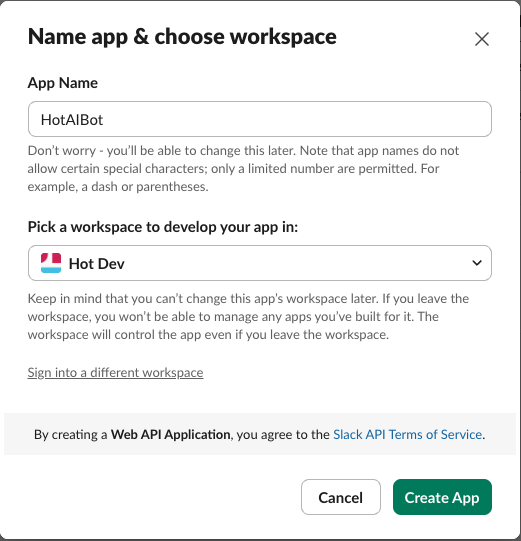
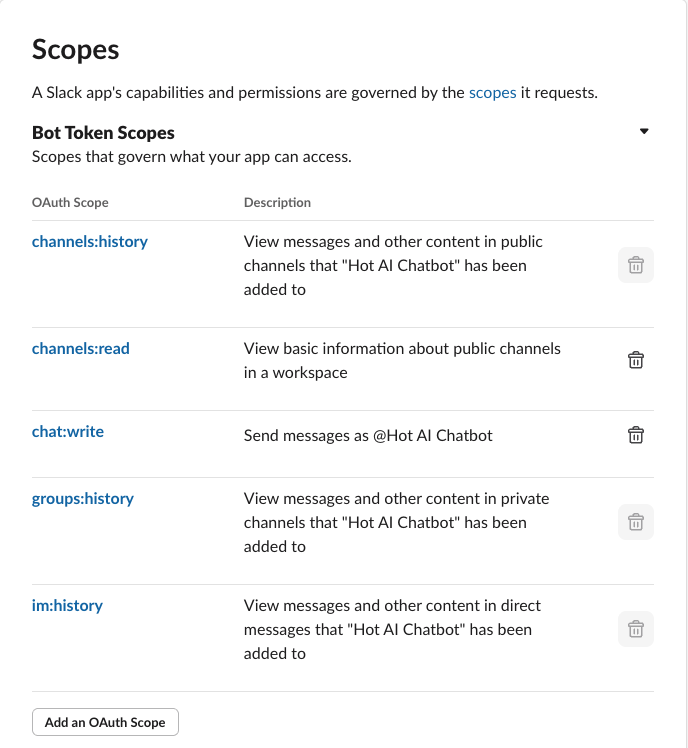
Next, add the bot permissions. Go to OAuth & Permissions and add these Bot Token Scopes:
| Scope | What it does |
|---|---|
channels:history | Read messages from public channels |
channels:read | Get channel info |
chat:write | Post messages and replies |
groups:history | Read messages from private channels (optional) |
im:history | Read direct messages (optional) |
Now install the app to your workspace:
- Go to Install App in the sidebar
- Click Install to Workspace and approve
- Copy the Bot User OAuth Token — it starts with
xoxb-
You'll land on a page with the Bot User OAuth Token — save this somewhere safe. You'll need it in a moment.
Finally, invite the bot to a channel:
/invite @Hot Ai ChatBot
Note the Channel ID — you can find it by right-clicking the channel name → "View channel details" → the ID is at the bottom (starts with C).
Step 2: Set Up the Project
Clone the demo:
git clone https://github.com/hot-dev/hot-demos.git
cd hot-demos/slack-bot
The project configuration lives in hot.hot. Here's the key part — the dependencies:
hot.project.slack-bot.deps {
    "hot.dev/hot-ai": "1.0.0",
    "hot.dev/slack": "1.0.4",
    "hot.dev/anthropic": "1.0.3",
    "hot.dev/openai": "1.0.4",
    "hot.dev/xai": "1.0.3",
    "hot.dev/gemini": "1.0.3"
}
These are Hot Dev packages — first-class integrations for Slack and all four AI providers. You don't need to install them separately. Hot Dev resolves them automatically.
Step 3: Understand the Bot Code
The entire bot lives in one file: hot/src/slack-bot/bot.hot. Let's look at the key parts.
Imports
::slack-bot::bot ns

// Namespace aliases — short names for the packages we use
::channels  ::slack::channels
::messaging ::slack::messaging
::misc      ::slack::misc
::webhooks  ::slack::webhooks
// ... other aliases (see full code on GitHub)

// AI provider aliases
::anthropic-chat ::anthropic::messages
::openai-chat    ::openai::chat
::xai-chat       ::xai::responses
::gemini-chat    ::gemini::chat
If you're new to Hot: :: denotes a namespace path. ::channels ::slack::channels creates a short alias so we can write ::channels/conversations-history(...) instead of the full ::slack::channels/conversations-history(...).
No import keyword, no curly braces — just alias full-namespace-path.
AI Model Selection
The bot lets users switch AI models live in the Slack channel with !ai commands. Here's how that's configured:
MODEL_ALIASES {
  "claude":   {service: "Anthropic", model: "claude-sonnet-4-5"},
  "opus":     {service: "Anthropic", model: "claude-opus-4-6"},
  "gpt":      {service: "OpenAi",    model: "gpt-5.2"},
  "grok":     {service: "Xai",       model: "grok-4-1-fast"},
  "gemini":   {service: "Gemini",    model: "gemini-3-flash-preview"}
  // ... plus shorthand aliases (see full code on GitHub)
}

DEFAULT_SELECTION {service: "Anthropic", model: "claude-sonnet-4-5"}
Notice: in Hot, assignment uses a space, not =. MODEL_ALIASES {…} means "bind the name MODEL_ALIASES to this map." This is one of Hot's core syntax rules — no equals sign.
AI Dispatch
This is the cleanest part. Hot's match flow dispatches to the right AI provider:
AiService enum { Anthropic, OpenAi, Xai, Gemini }

ask-ai fn match (service: AiService, model: Str, message: Str, system: Str): Str {
  AiService.Anthropic => { ::anthropic-chat/chat(model, message, system) }
  AiService.OpenAi    => { ::openai-chat/chat(model, message, system) }
  AiService.Xai       => { ::xai-chat/chat(model, message, system) }
  AiService.Gemini    => { ::gemini-chat/chat(model, message, system) }
}
Four AI providers, four lines. Each Hot Dev AI package exposes the same chat(model, message, system) interface, so switching providers is just matching on the enum.
Handling Messages
The handle-message function does the heavy lifting. It checks for !ai commands first, then falls through to the AI reply:
handle-message fn (channel: Str, message: Map, bot-user-id: Str): Map {
  text or(message.text, "")
  cmd parse-ai-command(text)

  cond {
    // !ai — show current model and available options
    eq(cmd, "help") => {
      // ... format and post model list (see full code on GitHub)
    }

    // !ai <selection> — acknowledge the switch
    is-some(cmd) => {
      svc get(SERVICE_INFO, cmd.service)
      ::messaging/chat-post-message(::messaging/ChatPostMessageRequest({
        channel: channel,
        text: `${svc.emoji} Switched to *${svc.name}* \`${cmd.model}\``
      }))
    }

    // Regular message — detect model from history and reply with context
    => {
      sel detect-selection(channel, bot-user-id)
      service to-service(sel.service)
      context fetch-context(channel, bot-user-id)
      prompt if(is-empty(context),
        text,
        `Recent conversation:\n\n${context}\n\n---\nRespond to the latest message.`
      )

      ai-response ask-ai(service, sel.model, prompt, SYSTEM_PROMPT)
      ::messaging/chat-post-message(::messaging/ChatPostMessageRequest({
        channel: channel,
        text: ai-response
      }))
    }
  }
}
The cond flow is Hot's branching construct — it evaluates conditions top-to-bottom and takes the first match. The => with no condition at the end is the default branch.
One clever detail: detect-selection scans the last 100 messages in the channel for the most recent !ai command. The model selection is stored in the chat history itself — no database, no state file, no Redis. Just Slack messages.
Polling for Messages
For local development, the bot polls the channel on a schedule:
check-channel-poll
meta {
  schedule: "every 15 seconds",  // comment out scheduled polling in Hot Dev Cloud in favor of webhooks + Slack Events API
  on-event: "slack-bot:check"
}
fn (event) {
  channel get-channel-id()
  bot-user-id get-bot-user-id()
  // ... fetch and filter messages (see full code on GitHub)
  for-each(new-messages, (msg) { handle-message(channel, msg, bot-user-id) })
}
The meta block is how Hot attaches metadata to functions. Here it says: "Run this every 15 seconds, and also run it when someone sends the slack-bot:check event." You can also trigger it manually at any time with hot eval 'send("slack-bot:check")'.
One thing you might notice: there are no println or logging statements anywhere in the code. That's because Hot Dev lets you inspect every function call, its arguments, return values, and timing — all from the app. No manual logging needed.
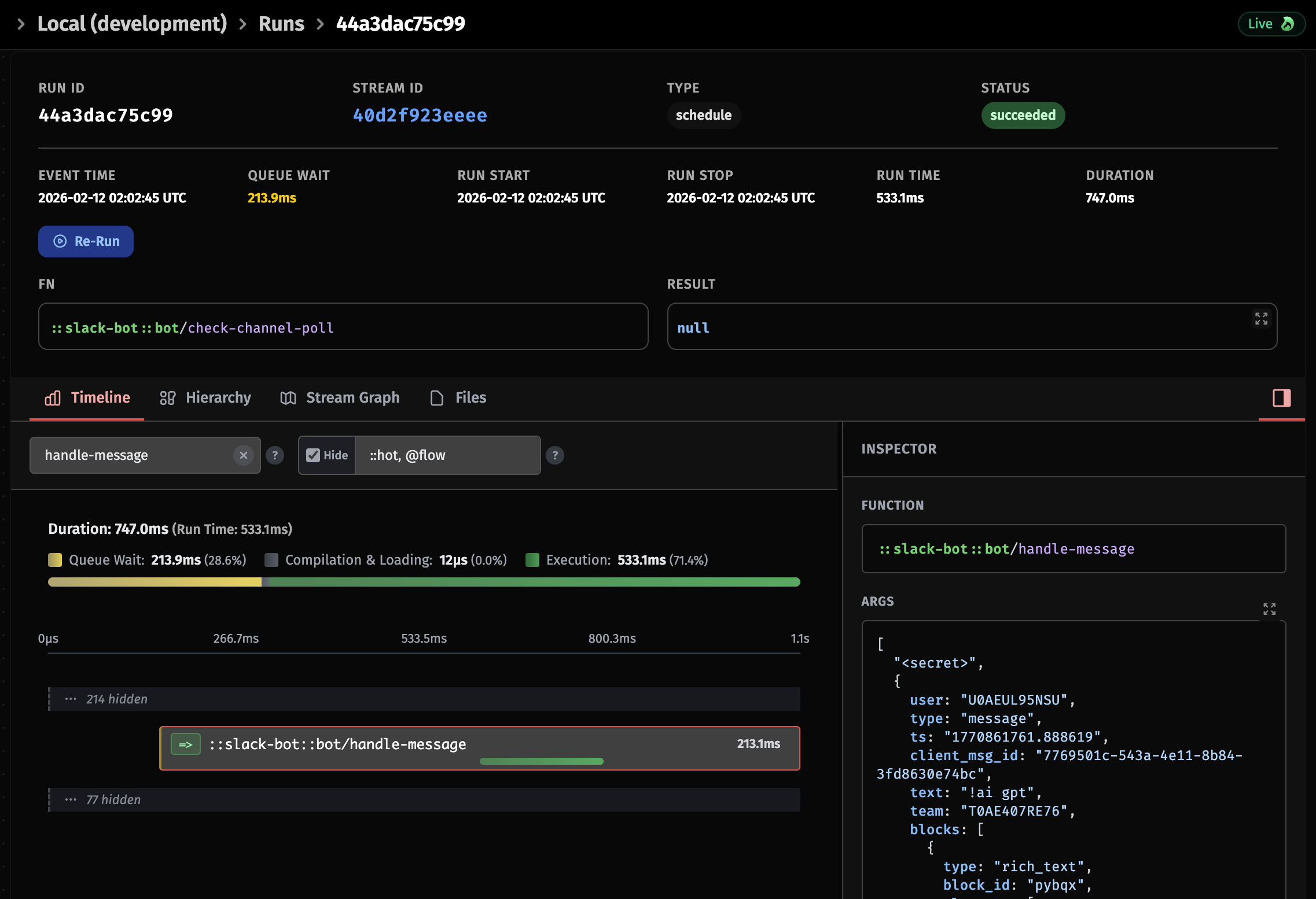
That's all the code you need to understand for now. Let's run it.
Step 4: Run Locally
Start the dev server:
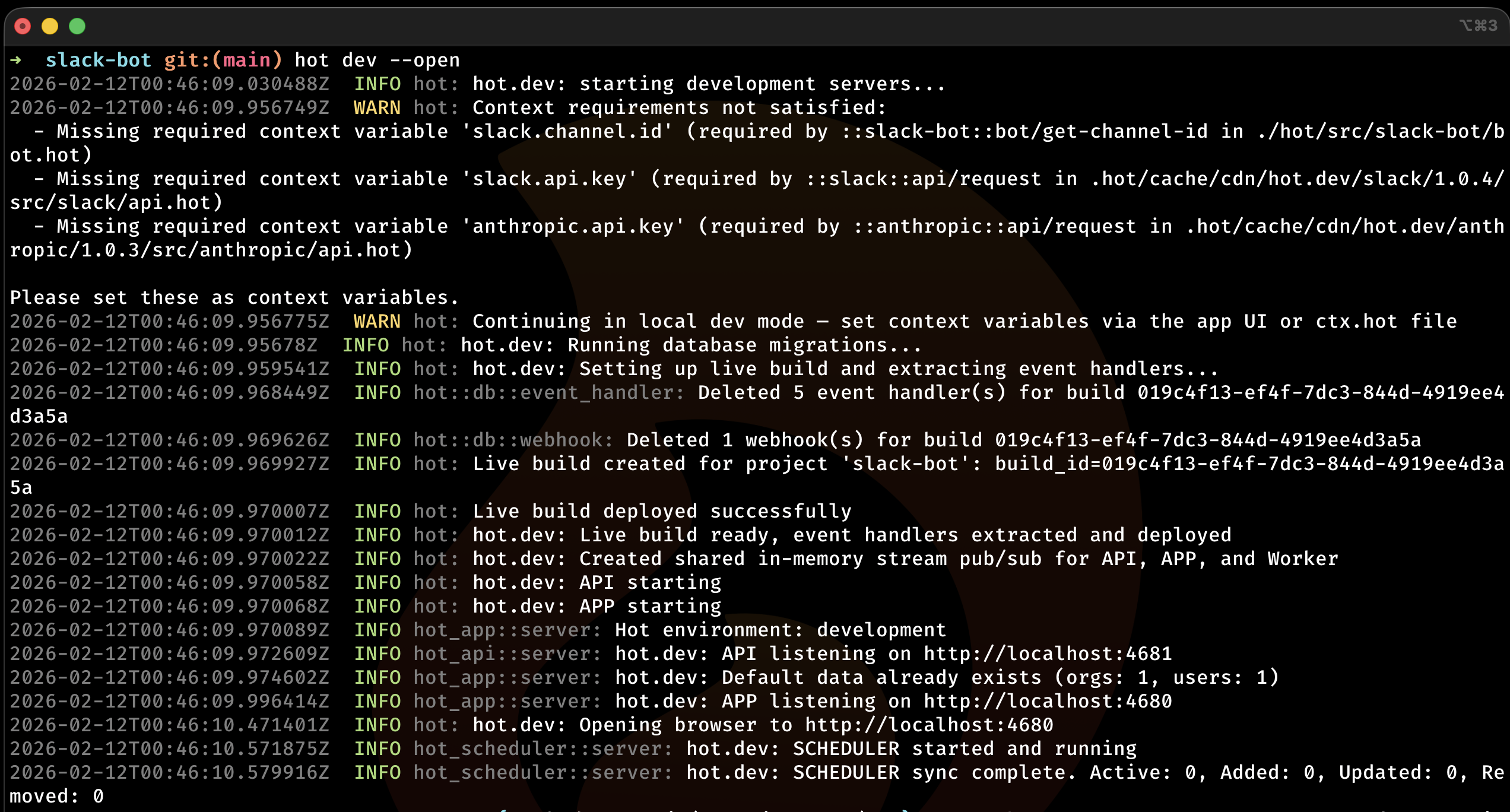
hot dev --open
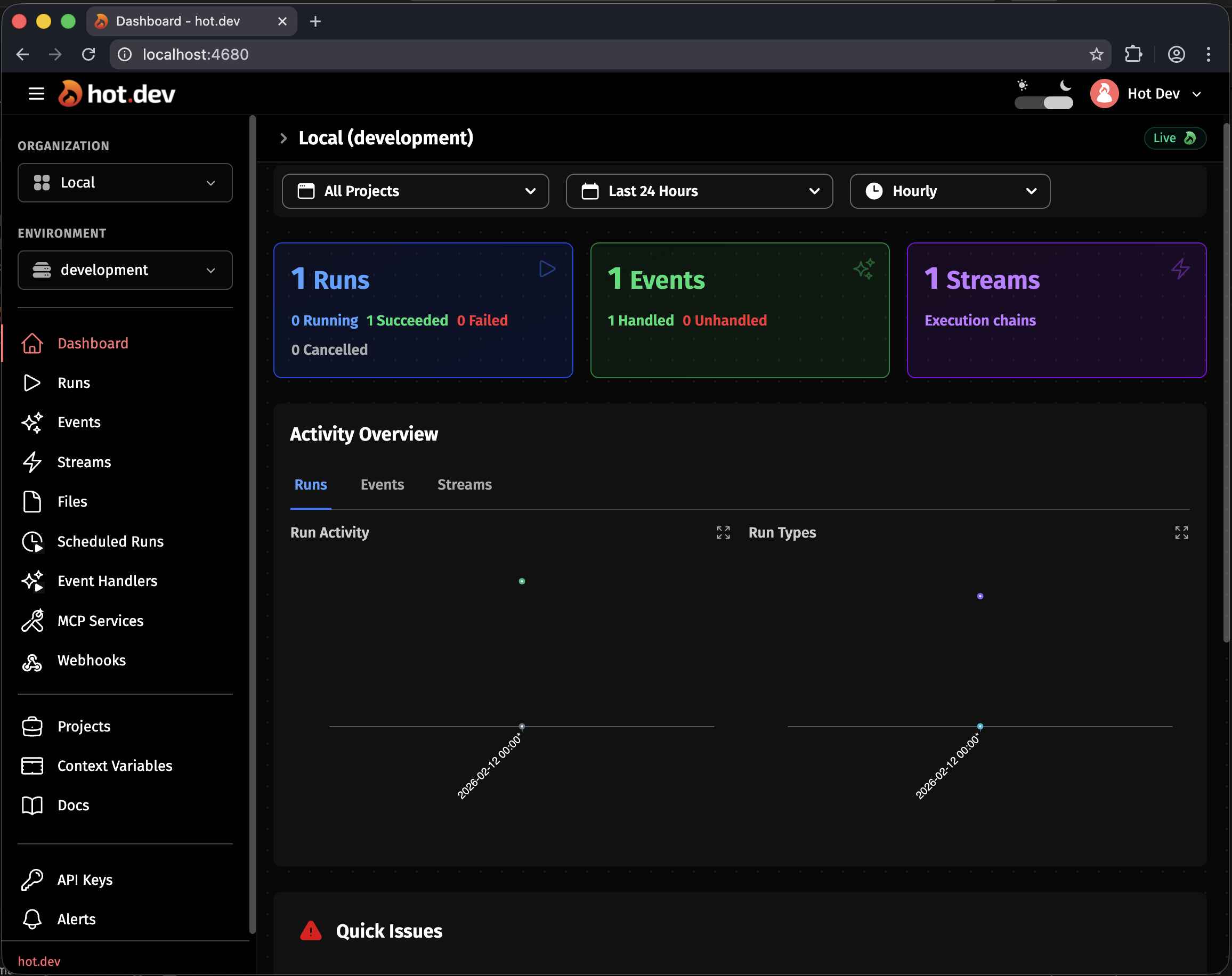
This starts the Hot Dev runtime locally and opens the app in your browser at http://localhost:4680.
Set Context Variables
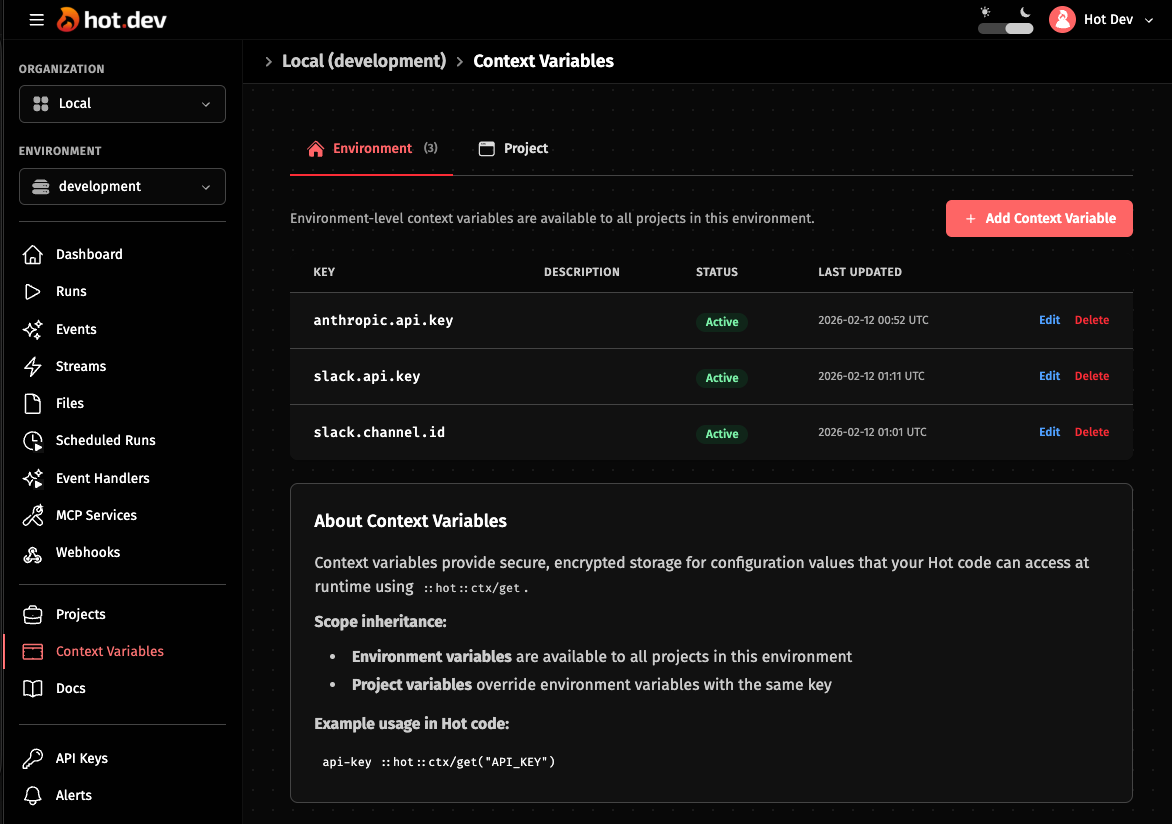
Hot Dev uses context variables for configuration and secrets. In the app, go to Context Variables and set the following:
| Key | Value |
|---|---|
slack.api.key | Your Bot User OAuth Token (xoxb-...) |
slack.channel.id | The channel ID (C...) |
anthropic.api.key | Your Anthropic API key |
If you're using a different AI provider as your default, set that provider's key instead (e.g., openai.api.key, xai.api.key, or gemini.api.key).
Test It
The bot will check the channel every 15 seconds. To trigger a check immediately:
hot eval 'send("slack-bot:check")'
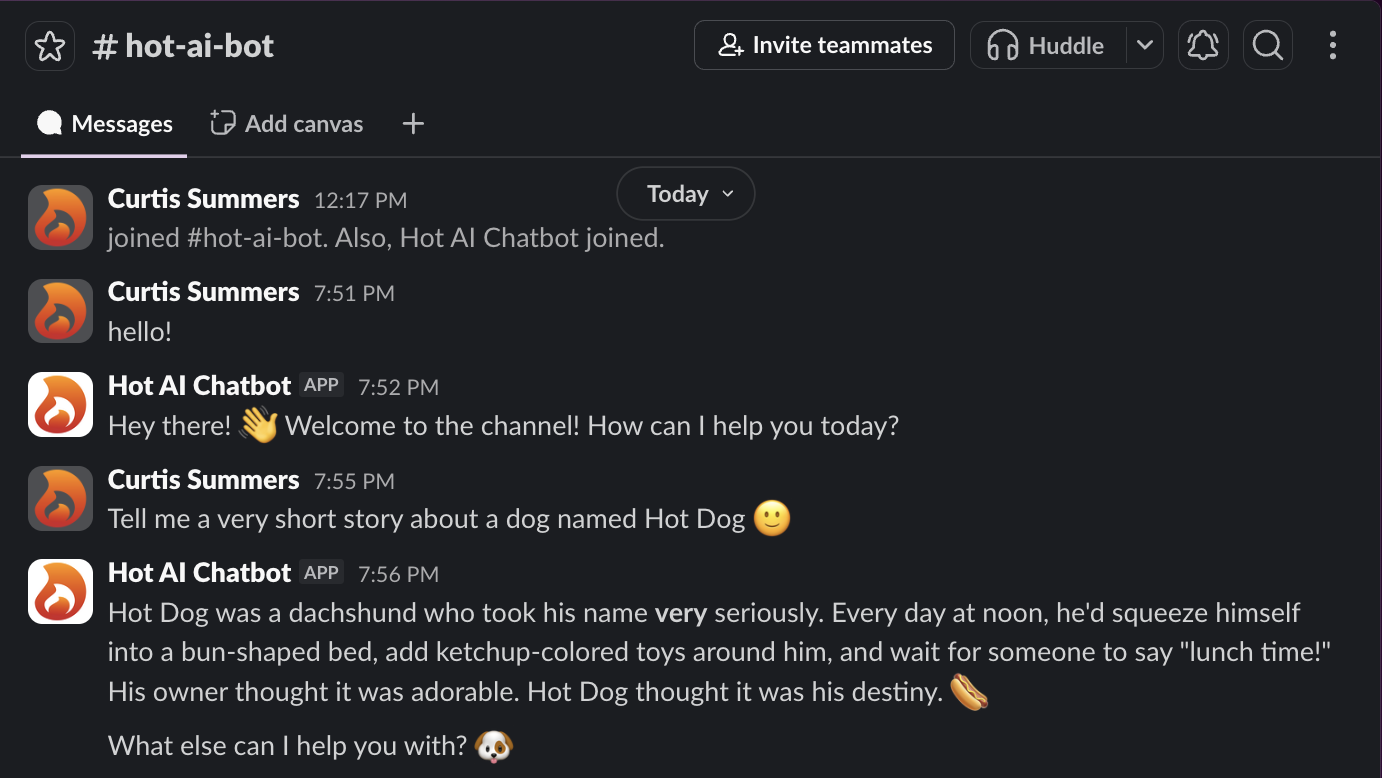
Type a message in your Slack channel and wait for the bot to reply.
Switch AI Models
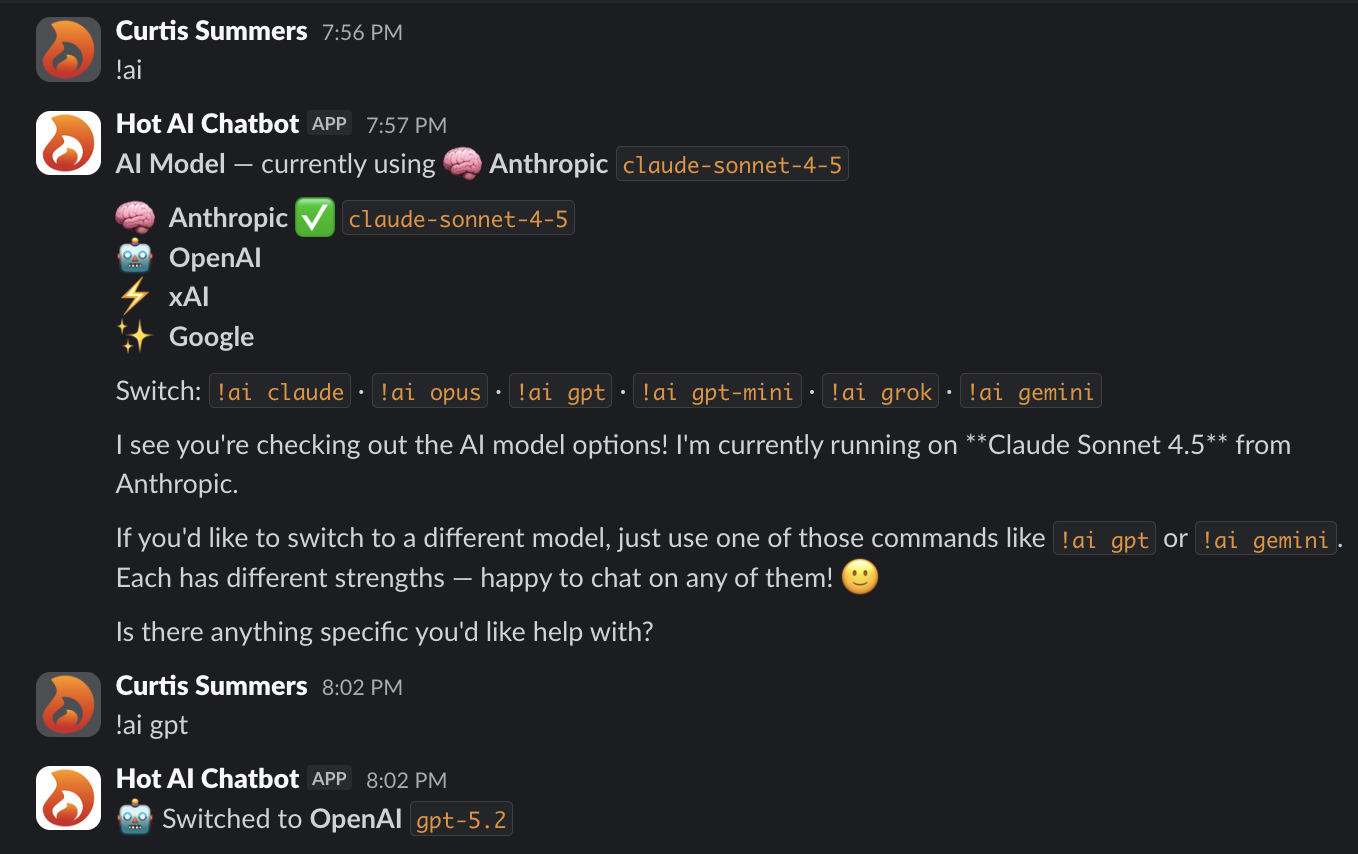
Type !ai in the Slack channel to see the current model and all options:
!ai
The bot replies with the active model and a list of available providers. To switch:
!ai gpt          → GPT-5.2
!ai grok         → Grok 4.1 Fast
!ai gemini       → Gemini 3 Flash
!ai claude       → Claude Sonnet 4.5
!ai opus         → Claude Opus 4.6
The selection sticks — the bot scans the channel history for the most recent !ai command and uses that model for all replies. No config change, no restart. Just type a command.
Taking It to Production
At this point you have a working AI Slack bot. But there's a catch: it's polling every 15 seconds. That's fast enough for testing, but not ideal for production — it makes unnecessary API calls when no one is talking, and there's still a small delay.
The fix is webhooks. Instead of polling, Slack sends your bot a message the instant someone types in the channel. The response is immediate. The reason we can't use webhooks during local development is simple: Slack's Events API needs a public URL to send events to, and it can't reach localhost.
To use webhooks, you need to deploy your bot to Hot Dev Cloud. Hot Dev gives your bot a public URL and handles scaling — all with a single command.
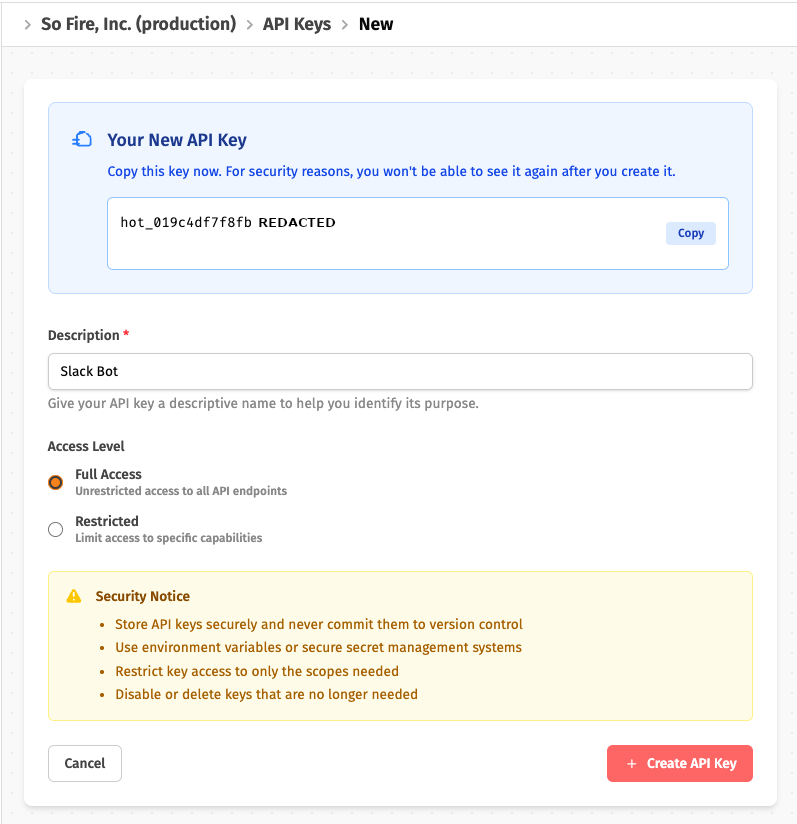
Sign Up and Get an API Key
- Create an account at app.hot.dev
- Go to API Keys and create a new key
- Set it in your terminal or in a
.envfile in your project root:
export HOT_API_KEY=your-api-key-here
Set Context Variables
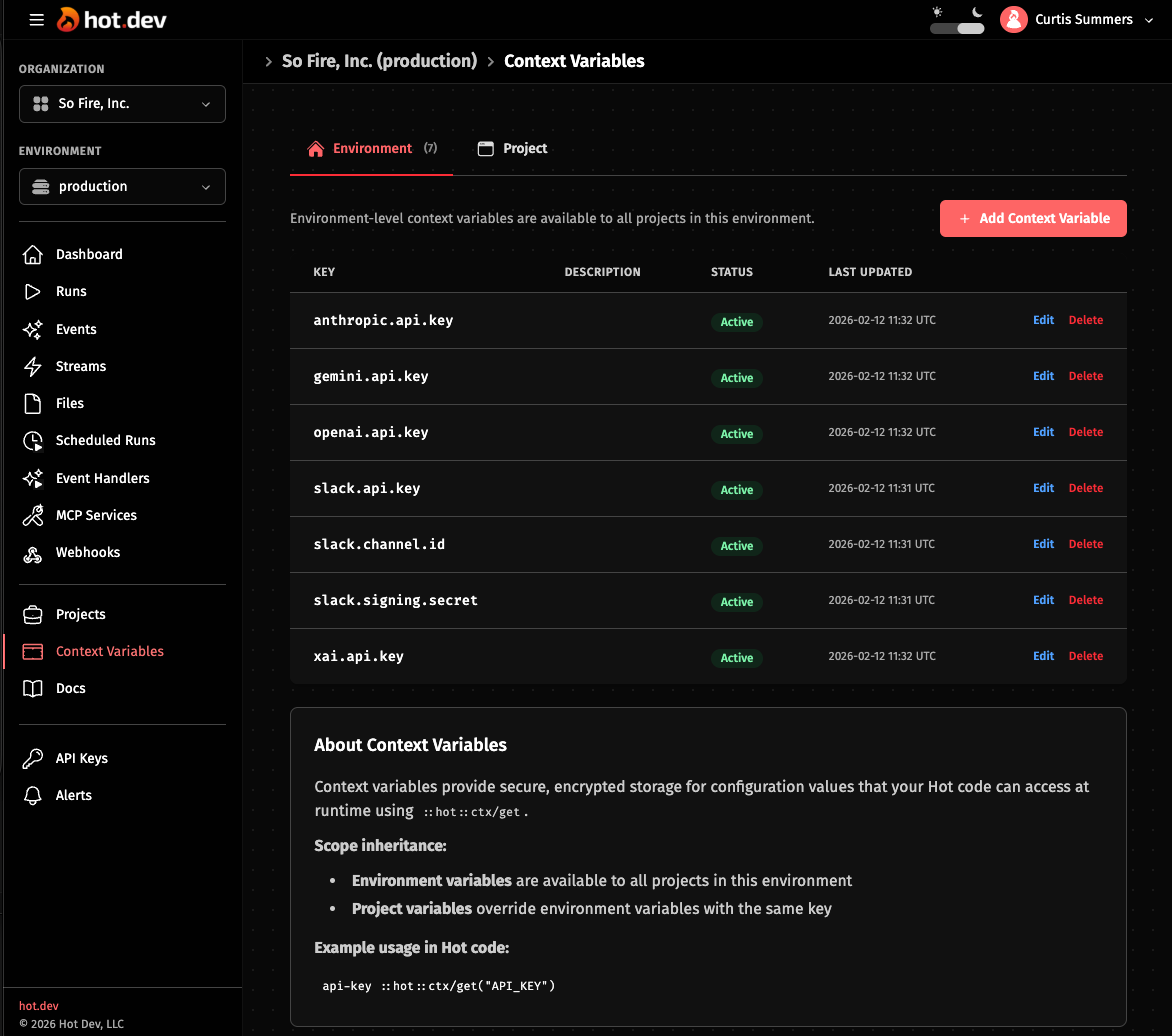
Same as local — go to Context Variables in the Hot Dev App and set the same keys:
slack.api.key— your bot tokenslack.channel.id— the channel IDslack.signing.secret— your Signing Secret (find it under Basic Information in your Slack app — needed for webhook verification)anthropic.api.key— your AI provider key(s)
Comment Out Polling
Since webhooks handle messages in real time, you don't need the polling schedule in production. Comment it out in bot.hot:
check-channel-poll
meta {
  // schedule: "every 15 seconds",  // comment out scheduled polling in Hot Dev Cloud in favor of webhooks + Slack Events API
  on-event: "slack-bot:check"
}
The function still exists — you can trigger it manually with hot eval if you ever need to — but it won't run on a schedule.
Deploy
hot deploy
$ hot deploy
No build ID provided, creating new bundle build from current source...
Discovering namespaces in: hot/src
Found namespace ::slack-bot::bot with 11 functions, 1 types
Discovered 1 namespaces
  ### package doc gen lines omitted ###
  Inserted 5 event handler(s)
  Inserted 1 webhook(s)
  Created build: .hot/build/.../019c51a7a5b97450802543f5787d8bc1.hot.zip
  Build ID: 019c51a7-a5b9-7450-8025-43f5787d8bc1
✓ Created bundle build 019c51a7-a5b9-7450-8025-43f5787d8bc1
  Size: 229013 bytes
Uploading build 019c51a7-a5b9-7450-8025-43f5787d8bc1 to remote environment...
✓ Successfully uploaded build 019c51a7-a5b9-7450-8025-43f5787d8bc1
Deploying build 019c51a7-a5b9-7450-8025-43f5787d8bc1 via API...
✓ Successfully deployed build 019c51a7-a5b9-7450-8025-43f5787d8bc1
That's it. Your bot is live.
Configure Slack Webhooks
Now tell Slack to send events to your bot in real time:
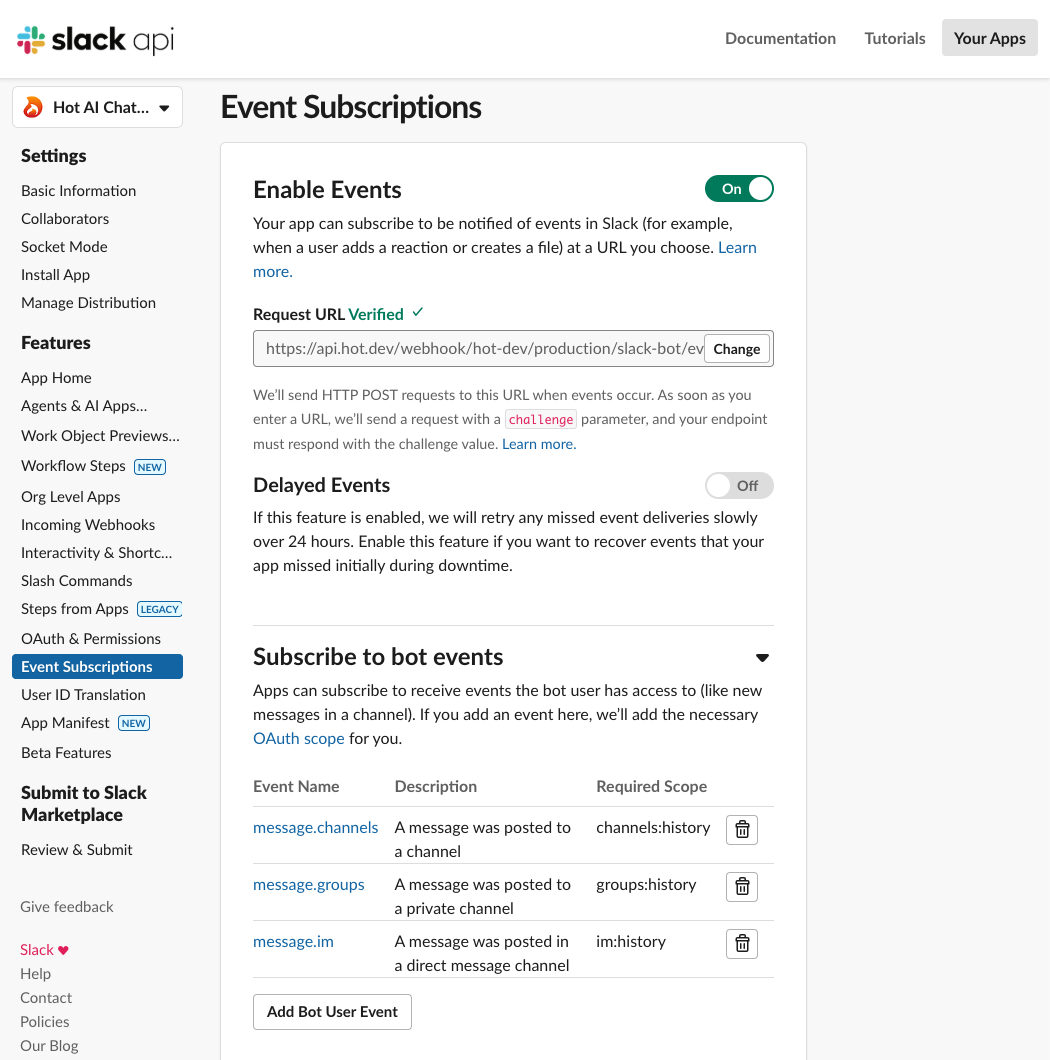
- Go to your Slack app → Event Subscriptions → toggle Enable Events
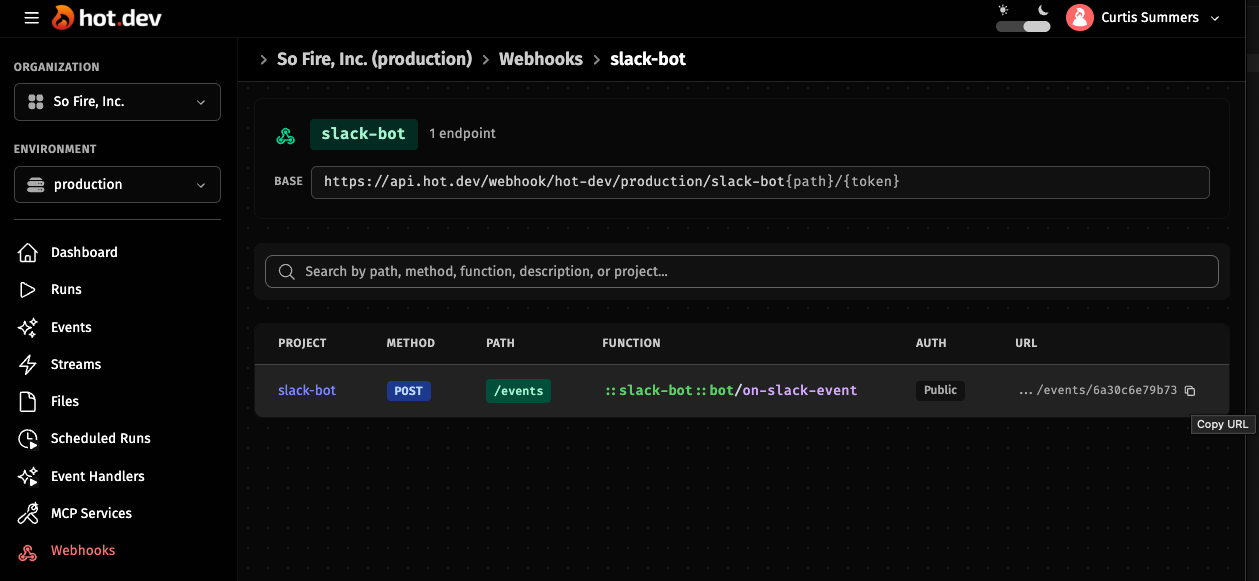
- Set the Request URL to your webhook endpoint — copy the URL from Webhooks in the Hot Dev App.
- Subscribe to Bot Events:
message.channels— messages in public channelsmessage.groups— messages in private channels (optional — requiresgroups:historyscope)message.im— direct messages to the bot (optional — requiresim:historyscope)
- Click Save Changes — Slack will prompt you to reinstall the app to pick up the new event permissions.
Note: Subscribing to an event locks its required scope — you won't be able to remove the scope until you remove the event subscription first.
How the Webhook Handler Works
The bot already has the webhook code — it just wasn't doing anything during local development. Here's what kicks in when deployed:
on-slack-event
meta {
  webhook: {
    service: "slack-bot",
    path: "/events",
    method: "POST",
    description: "Receive Slack Events API callbacks"
  }
}
fn (request: HttpRequest): HttpResponse {
  cond {
    // Slack URL verification challenge (one-time setup)
    eq(request.body.type, "url_verification") => {
      HttpResponse({status: 200, headers: {"content-type": "application/json"},
        body: {challenge: request.body.challenge}})
    }

    // Verify the request signature
    not(::webhooks/verify-request(request)) => {
      HttpResponse({status: 401, body: {error: "invalid signature"}})
    }

    // Handle the event — top-level messages only (simplified — see full code on GitHub)
    eq(request.body.type, "event_callback") => {
      event request.body.event
      cond {
        and(eq(event.type, "message"), is-null(event.subtype), is-null(event.bot_id), is-null(event.thread_ts)) => {
          bot-user-id get-bot-user-id()
          handle-message(or(event.channel, get-channel-id()), event, bot-user-id)
        }
      }
      HttpResponse({status: 200, body: {ok: true}})
    }

    => { HttpResponse({status: 200, body: {ok: true}}) }
  }
}
The meta { webhook: {...} } block tells Hot Dev to register this function as an HTTP endpoint. In production, it gets a public URL automatically. The handler verifies Slack's request signature before processing — this prevents unauthorized requests.
Since you commented out the polling schedule, only the webhook handler is active in production.
Here's the full picture:
Local Dev (polling):                    Production (webhooks):

  Schedule (every 15s)                     Slack Events API
         │                                       │
         ▼                                       ▼
  check-channel-poll()               on-slack-event(request)
         │                                       │
         ├─ fetch recent messages                ├─ verify signature
         ├─ filter bot/system msgs               ├─ filter to top-level msgs
         └─ for each message:                    └─ handle-message()
              └─ handle-message()                      │
                       │                               ├─ !ai command? → switch
                       ├─ !ai command? → switch model  └─ regular msg? → ask AI → reply
                       └─ regular msg? → ask AI → reply
Both sides call the same handle-message() function. The only difference is how messages arrive.
FAQ
Can I use this with a private channel?
Yes. Add the groups:history and groups:read scopes to your Slack app and invite the bot to the private channel.
How do I change the default AI model?
Edit the DEFAULT_SELECTION line in bot.hot. Set service to one of "Anthropic", "OpenAi", "Xai", or "Gemini" and model to the model name you want.
What if my AI API key is missing? The bot will return an error for that provider. It won't crash — Hot's error handling propagates the failure as a Result. The other providers still work fine.
Is Hot Dev free to use? The Hot CLI and runtime are open source under Apache 2.0. See hot.dev/pricing for cloud deployment options.
Get Started
Install Hot Dev and try it yourself: hot.dev/download
Resources:
Built something cool with Hot Dev? Share it with us on X @hotdotdev — we'd love to see it.